Events
An event is anything people register for. Each event has its own forms, pricing, roster and features. You need to be an Administrator, or a Ministry Leader of the event's ministry.
Create an event
Go to Sign Ups > Settings > Events and click Add event.
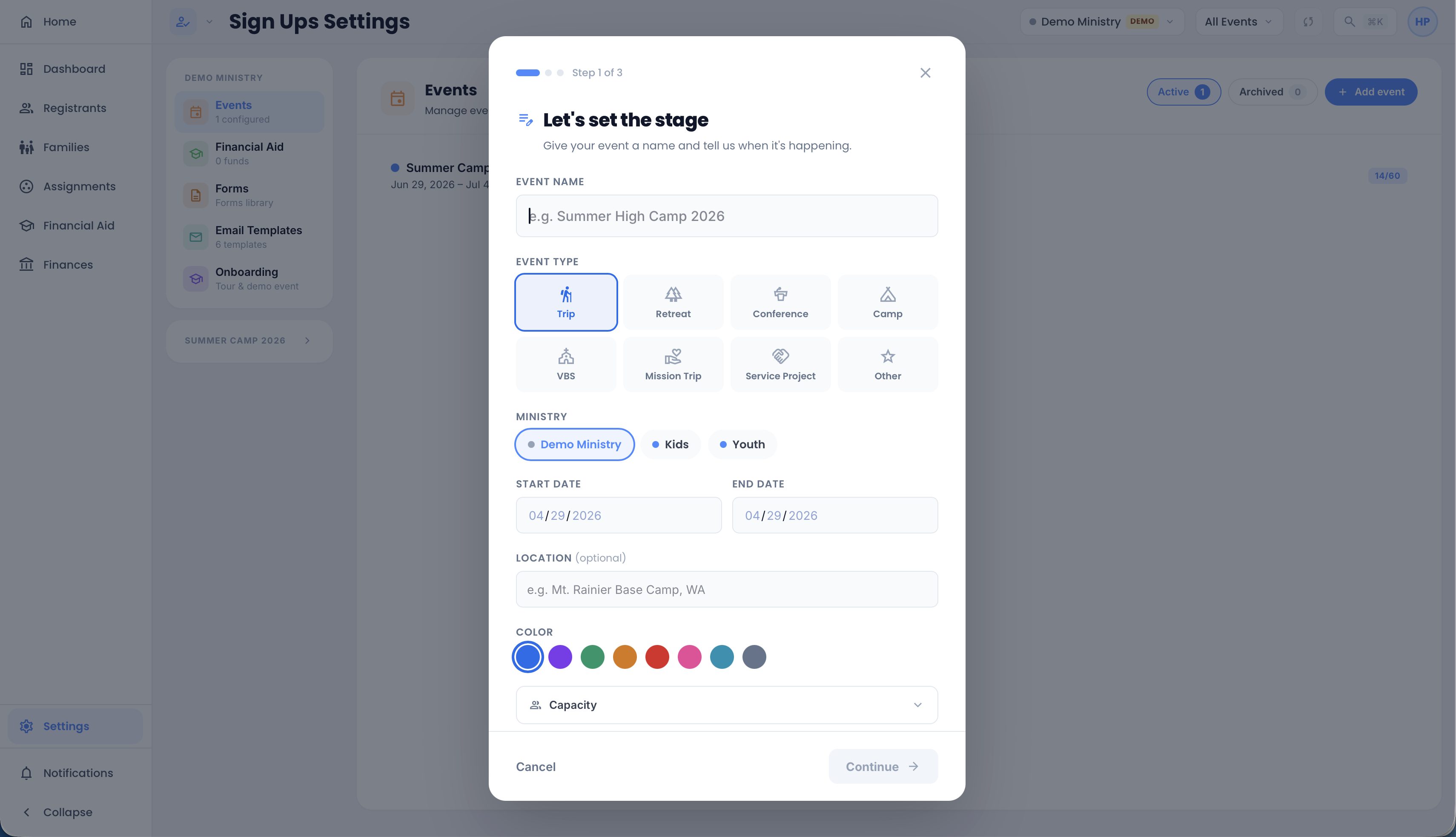
Step 1: The Basics
- Event Name and Event Type (Trip, Retreat, Camp, VBS and so on).
- Ministry (only shows if you have more than one).
- Start Date and End Date.
- Location (optional).
- Color. This can't be changed later.
- Capacity (click to open): Participant Spots and Leader Spots. Add Spot limits to cap a slice of participants by gender, grade or both (for example 15 High School Female spots). Grade choices come from your grade ranges. Only active registrants take a spot.
Step 2: Features
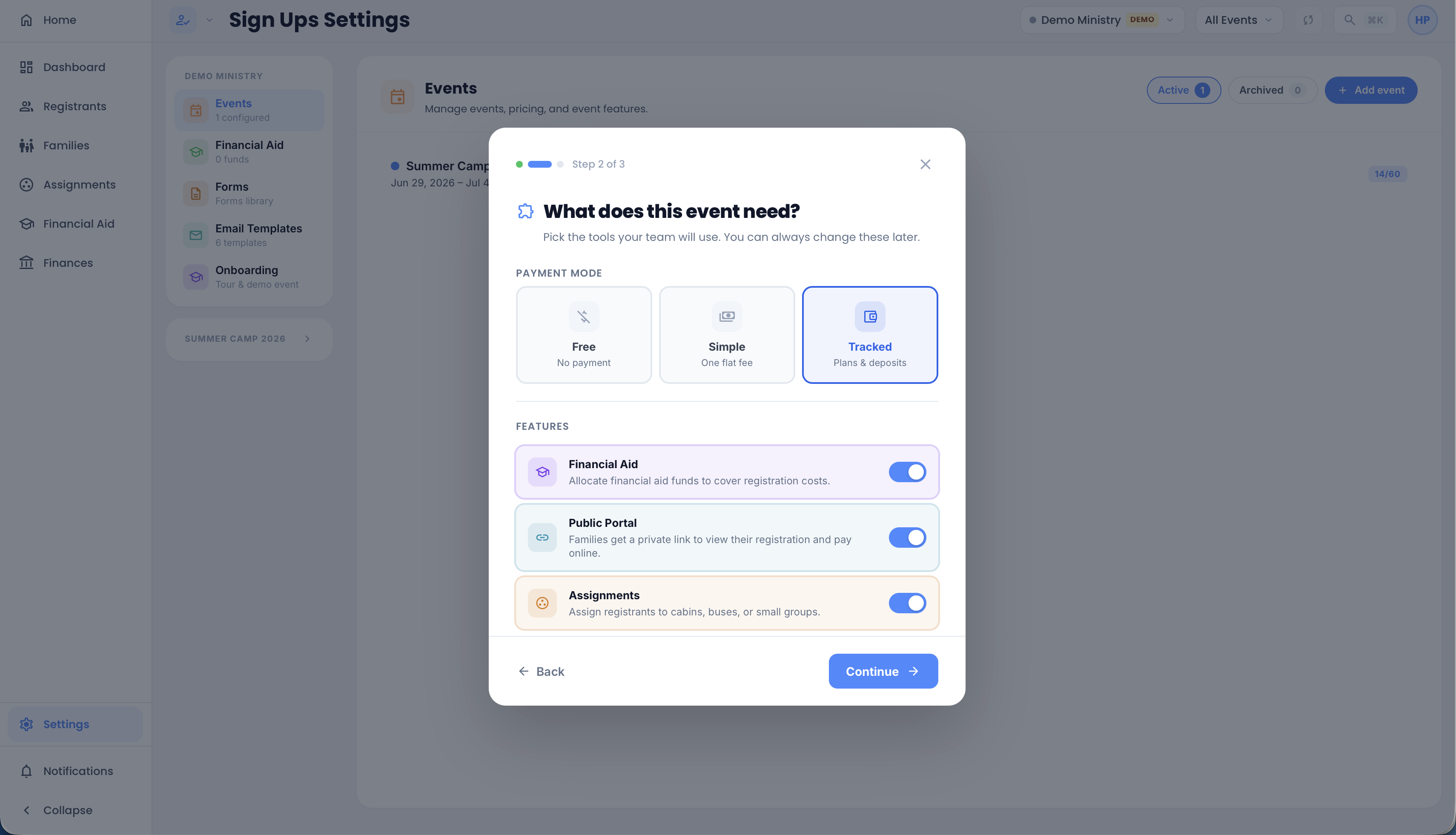
Pick a Payment Mode:
- Free: no payment.
- Simple: one flat fee.
- Tracked: deposits, price tiers and balances paid over time.
Then turn on the features this event needs:
- Financial Aid: families can apply for help. See Financial Aid.
- Public Portal: adds a payment plan link to reminder emails. See Family Portal.
- Assignments: cabins, buses or groups, plus the event volunteer roster. See Assignments.
Finances is also turned on for new events. You can change any of these later.
Step 3: Payments
Only for Simple and Tracked events.
- Simple: the Registration Fee.
- Tracked:
- Deposit Amount (optional), shown to families as due at registration.
- Total Registration Fee.
- Payment Tiers: turn on for prices like Early Bird and Regular. Each tier has a name, price and deadline.
- Payment Due Date (optional). Needed if families will set up payment plans.
- Assign Forms (optional).
Click Create Event. Skip for now also creates the event with what you've filled in.
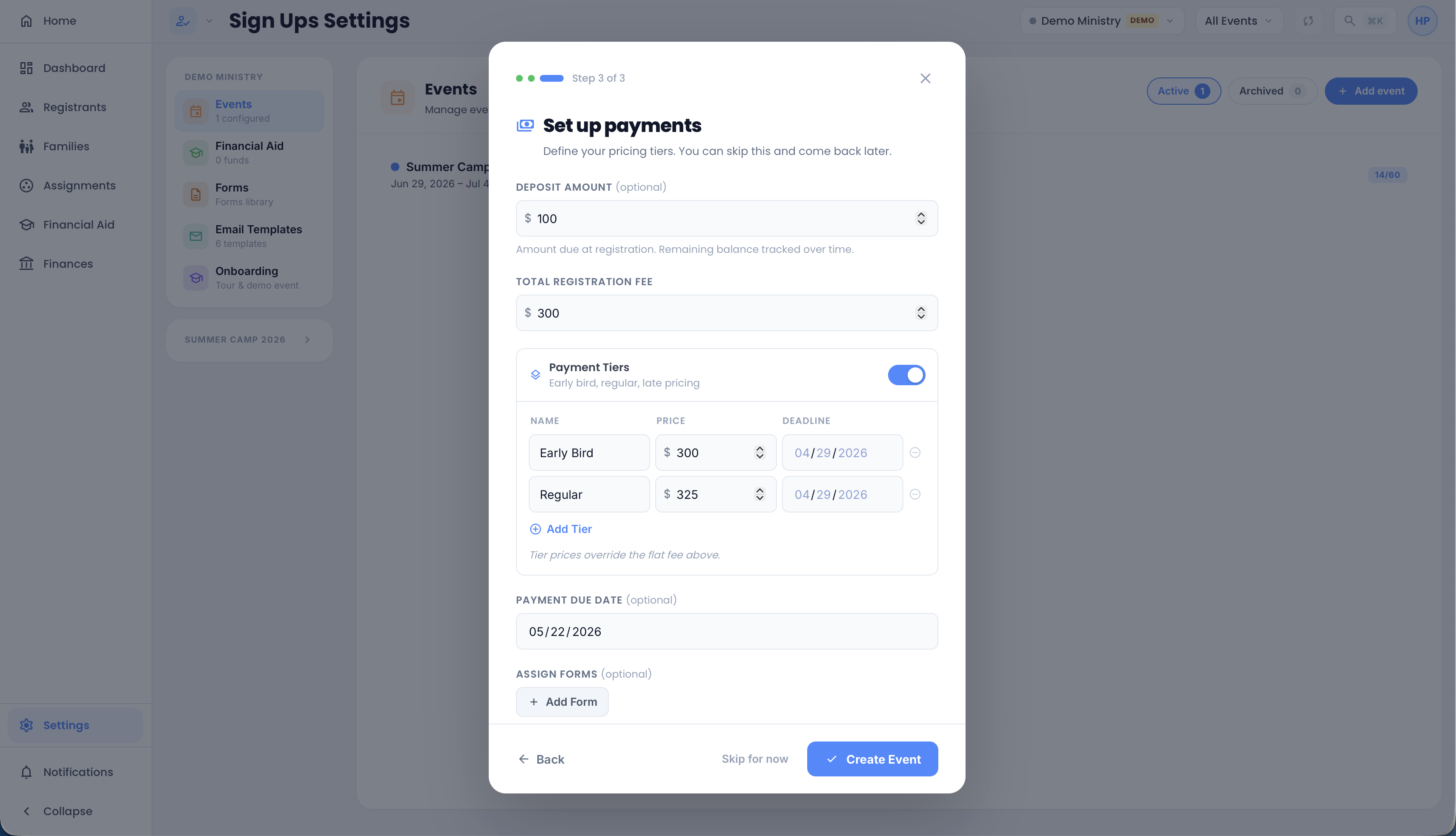
Turn on Payment Tiers now if you'll ever want tiers. There's no switch to turn them on after the event is created.
Change an event's settings
Pick the event in the event picker, then go to Settings. The event's sections are in the left rail under its name. Click Save Changes when you're done.
Details
- Name, Short name (for tight spaces), Ministry, Event Type, dates, Location and Payment Due Date.
- Status: see below.
- Capacity.
- Pricing: the fee, deposit or tier prices.
- Forms: forms attached to this event. Click Add Form to attach one.
- Resync from CCB: see Registrants.
- CCB Group Sync: see below.
Communications
Sender Identity sets the From name and Reply-To for emails about this event. Leave blank to use your ministry or workspace settings.
Features
Change the Payment Mode and turn features on or off. Turning something off hides it but never deletes data.
- Switching to Free turns off Financial Aid and Public Portal.
- Switching to Simple or Free turns off Payment Tiers for good.
Custom Fields
Extra details you want to see on each registrant, like T-shirt size. Click Add Custom Field and pick a Label, Type and where it shows. Custom field answers come from your CCB form; see Forms.
How prices work
- Each registrant's cost is worked out from their tier (or the flat fee) every time you look. If you change a price, it changes for everyone already registered.
- Tier deadlines are shown for reference. Sign Ups doesn't switch tiers automatically.
- Registrants imported from CCB don't get a tier. On tiered events, open each new registrant and pick their tier from the tier pill at the top. Until you do, they owe $0.
Status: Open, Closed, Archived
| Status | What happens |
|---|---|
| Open | Registrations import from CCB when you sync. |
| Closed | No more registrations import. It stays in the event picker. |
| Archived | Also hidden from the event picker. All data is kept. |
To archive, set Status to Archived and save. To bring it back, go to Settings > Events, click Archived, open the event and set it back to Open or Closed.
Keep a CCB group in sync
Push an event's roster into a CCB group, for example so your camp group in CCB always matches who's registered.
- In Details, click Set up CCB group sync…
- Search for the CCB group and pick it.
- Tick Keep this event synced to the group to update it on every Auto-Sync.
- Click Save link, or Sync now to run it right away.
Active registrants are added to the group. Anyone in the group who isn't an active registrant is removed from the CCB group. Group leaders are never removed. People not in CCB are skipped.
Common questions
My event disappeared from the picker. It's archived. Find it under Settings > Events > Archived.
New registrations stopped coming in. Check the event's Status is Open and the registration form is attached. See Forms.
Everyone on my tiered event owes $0. They don't have a tier yet. Open each registrant and pick one.